Lawn care software that keeps QuickBooks Online up to date
Run your lawn care or landscaping business in LawnPro and keep your books in QuickBooks Online. Customers, invoices, and payments sync automatically, two-way or in the direction you choose, with duplicate prevention. No double entry, no end-of-month catch-up, no spreadsheet exports.
What syncs, and how you control it
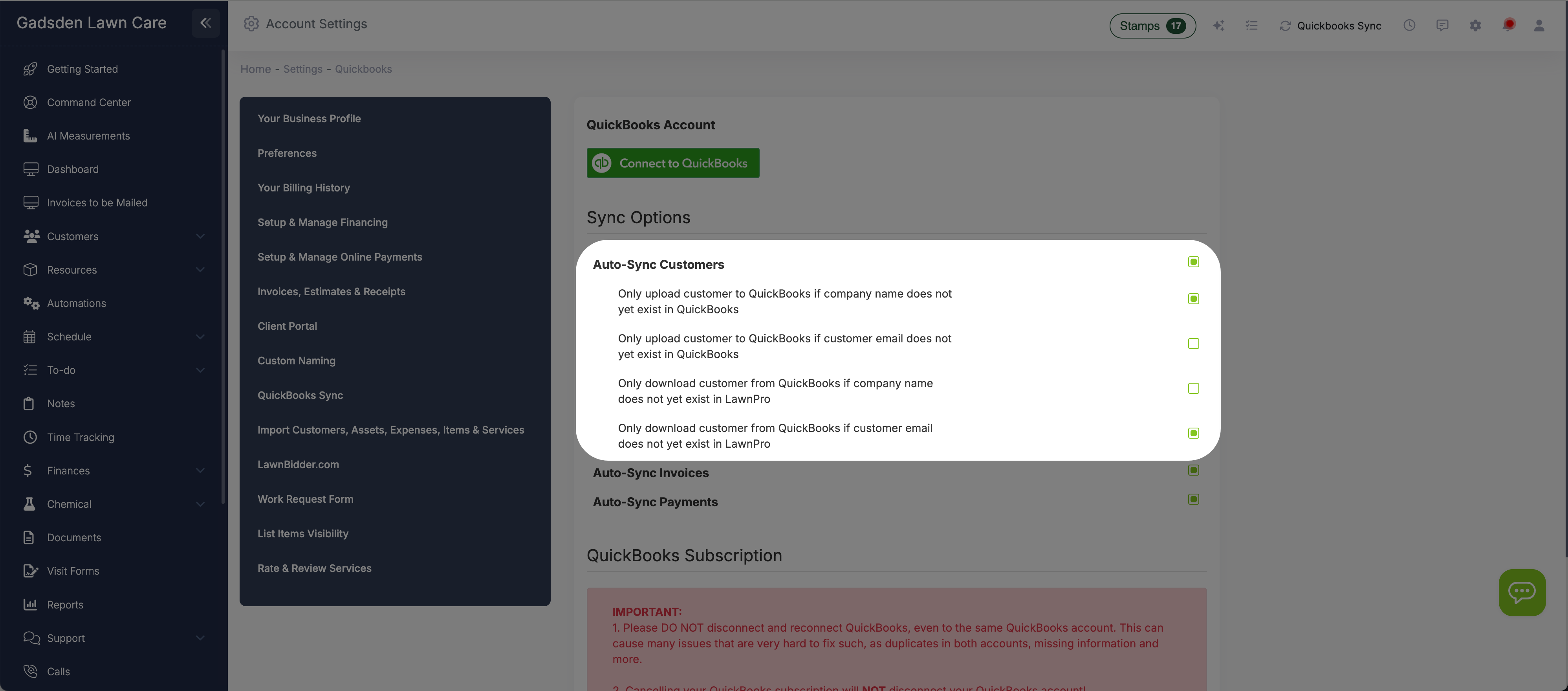
Two-way customer sync with duplicate prevention
Enable Auto-Sync Customers and your customer records flow between LawnPro and QuickBooks Online. New customers you add in LawnPro appear in QuickBooks, and customers you add in QuickBooks can sync to LawnPro. To prevent duplicates, you control the rules: only upload if the company name doesn't already exist in QuickBooks, only upload if the email doesn't exist, only download if the company name doesn't exist in LawnPro, or only download if the email doesn't exist. Mix and match these settings to match how your data is organized. If both systems already have the same customers, the QuickBooks Map page links them instead of creating copies.
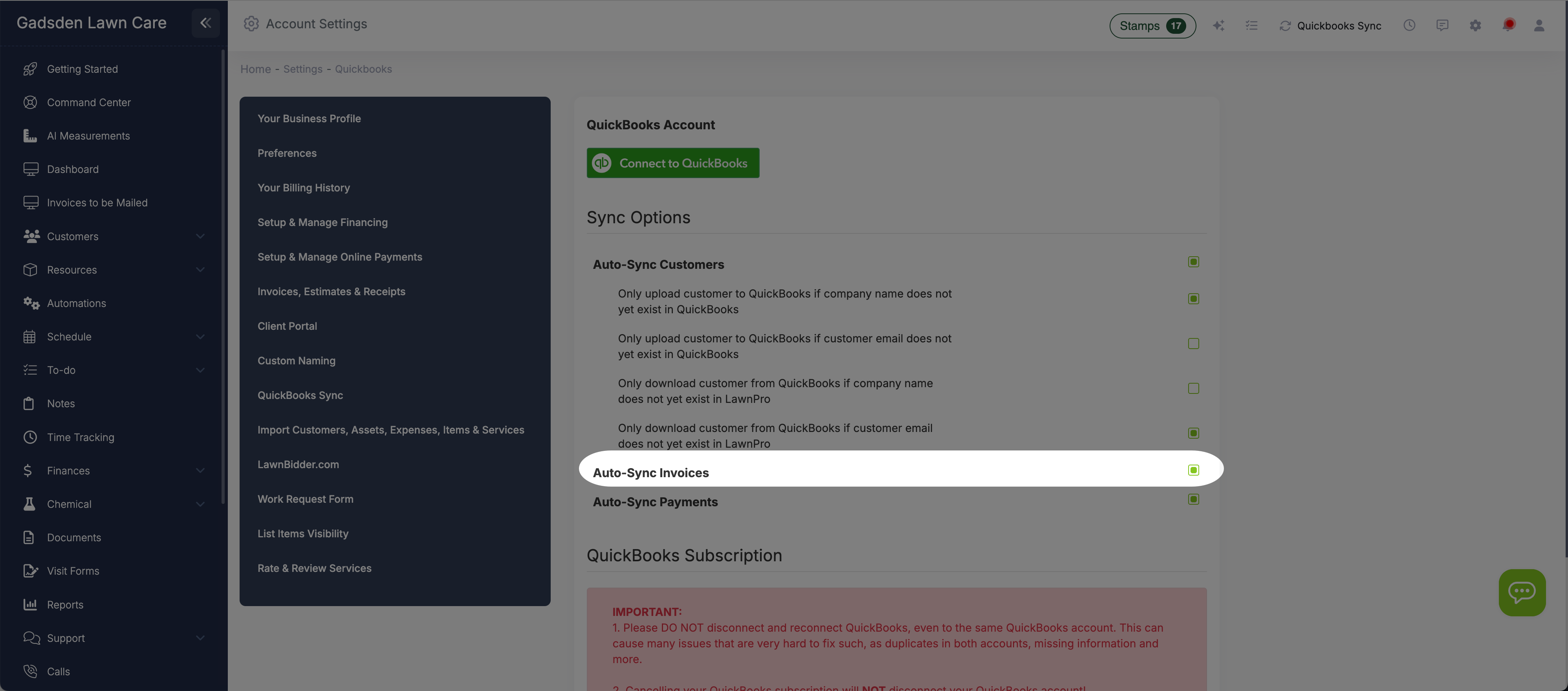
Invoices upload to QuickBooks automatically, usually within minutes
Enable Auto-Sync Invoices and every invoice you create in LawnPro is pushed to QuickBooks Online automatically, usually within minutes, and later edits follow. Each line keeps its description, quantity, amount, and service date and posts to a single Services item in QuickBooks, with sales tax, discounts, and late fees included. No exporting CSVs, no manual re-entry, no reconciliation spreadsheets. Your accountant or bookkeeper sees the same invoices you do. This is especially powerful when combined with auto-invoicing—close a visit, the invoice creates itself, and it flows straight to QuickBooks without you doing anything.
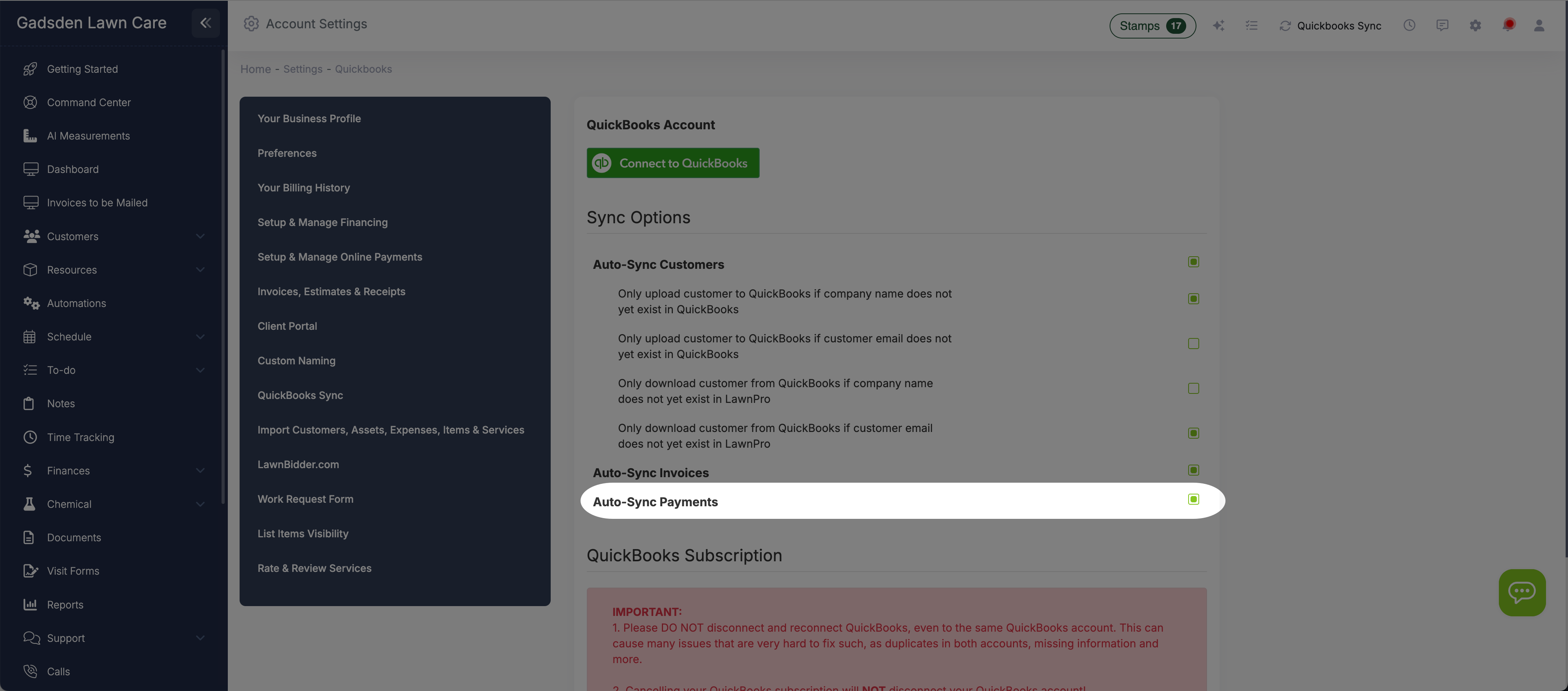
Payments land in QuickBooks, applied to the right invoice
Enable Auto-Sync Payments and the payments you collect, whether card, ACH, cash, or check, sync to QuickBooks Online automatically. The payment amount, date, method, customer, and the invoice it pays all transfer. Refunds do not sync, so record those in QuickBooks. When a customer pays through the portal or you charge a card on file, QuickBooks updates without you logging in. Your accounts receivable stays accurate without end-of-month reconciliation sessions.
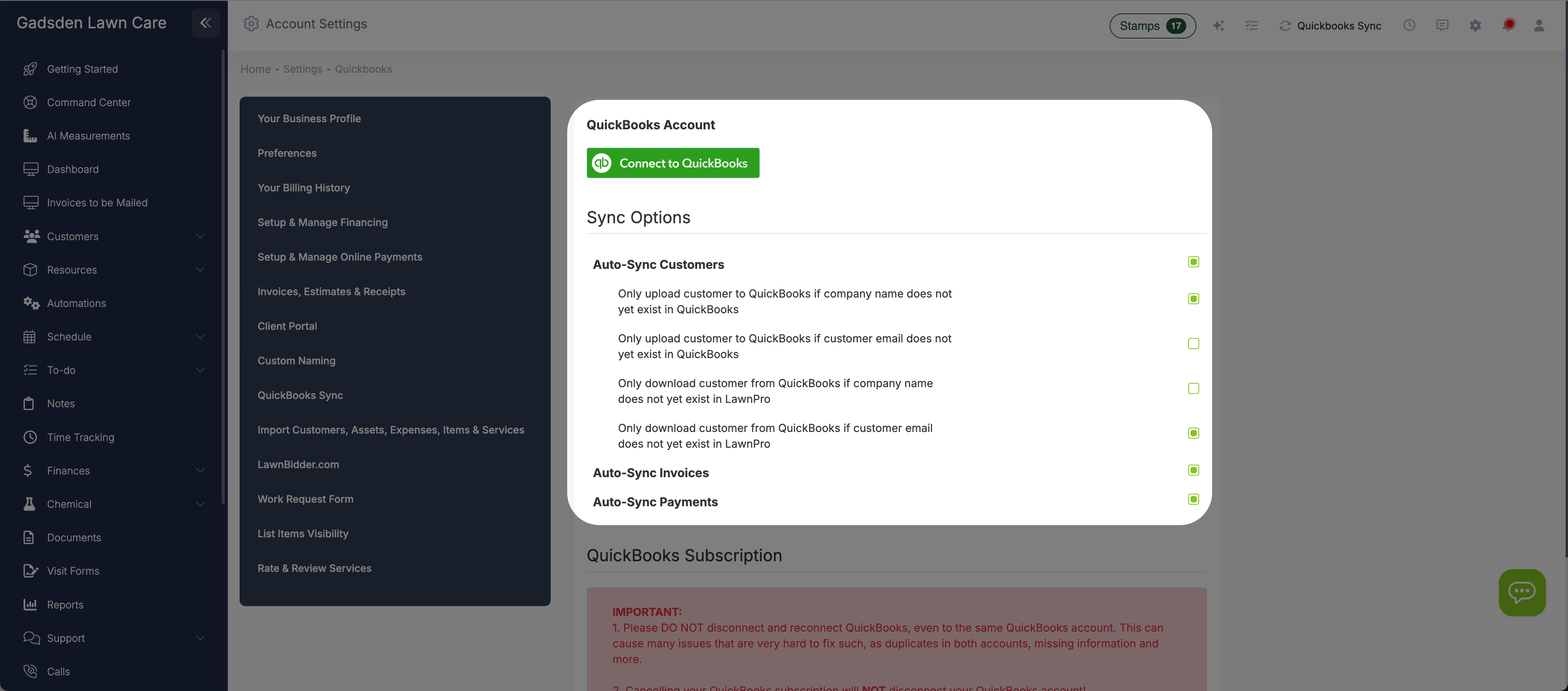
You control exactly what flows and what doesn't
The QuickBooks Sync settings page gives you full control. Toggle auto-sync on or off independently for customers, invoices, and payments, and choose two-way sync or one direction only. Set duplicate prevention rules based on company name or email address—separately for uploads (LawnPro → QuickBooks) and downloads (QuickBooks → LawnPro). Connect to QuickBooks and your sync starts working based on your settings. If you ever need to adjust, change a toggle and the behavior updates right away.
Connect in three clicks
Included on the Plus plan, or add it to any other plan for $29/month.
Enable QuickBooks Sync
Go to Settings → QuickBooks Sync and click "Enable QuickBooks Sync" or "Connect to QuickBooks."
Log in to QuickBooks
Authorize the connection with your QuickBooks Online credentials. LawnPro links to your account securely.
Set Your Sync Rules
Toggle auto-sync for customers, invoices, and payments. Set duplicate prevention rules. Done.
I used to spend two hours every Friday night entering invoices into QuickBooks. Now they just show up there. Payments too. My accountant loves it because everything matches and she doesn't have to chase me for missing entries at tax time.
LawnPro Customer
Why sync matters for your business
Manual data entry is slow, error-prone, and the first thing to fall behind when you're busy.
Two-Way Sync
Data flows both directions, or just one if you prefer. Add a customer in LawnPro and it appears in QuickBooks. Add one in QuickBooks and it syncs to LawnPro.
Duplicate Prevention
Control sync rules based on company name or email. Prevent duplicate records from being created in either system so your data stays clean.
Automatic Sync
Invoices and payments upload on their own, usually within minutes. No manual exports, no end-of-month catch-up. Your QuickBooks account stays current without extra work.
Granular Control
Toggle auto-sync independently for customers, invoices, and payments. Want to sync invoices but manage customers manually? Just flip the toggles.
Tax-Ready Books
Every invoice and payment in QuickBooks, automatically. Your accountant has what they need for quarterly estimates and annual filings without chasing you.
One-Click Connection
Click Connect to QuickBooks, log in, and authorize. No complicated setup or API configuration.
Do lawn care businesses need separate accounting software?
Usually, yes. Lawn care software like LawnPro runs the day-to-day: scheduling, estimates, invoices, and collecting payments. Accounting software like QuickBooks Online keeps the books: expenses, payroll, and taxes. QuickBooks sync connects the two so data flows automatically between them. Instead of creating an invoice in LawnPro and then re-entering it in QuickBooks, the sync pushes it over for you. Same with payments—when a customer pays online or you record a check, it shows up in QuickBooks without manual entry.
LawnPro's QuickBooks sync works with QuickBooks Online and supports two-way or one-way syncing for customers, invoices, and payments. You control each type independently with auto-sync toggles. Duplicate prevention settings let you match records by company name or email address so the same customer doesn't get created twice. This is especially important during initial setup when both systems may already have overlapping data.
The result is accurate books without extra work. Combine QuickBooks Sync with LawnPro's auto-invoicing and auto-charge features and the entire billing pipeline runs on autopilot: close a visit, the invoice creates itself, the card is charged, the payment records, and everything syncs to QuickBooks—all without you opening a browser tab. QuickBooks sync is included on the Plus plan and is a $29/month add-on on other plans. It is officially supported in the U.S.
QuickBooks sync FAQ
No. LawnPro handles the lawn care side of the money: estimates, invoices, online payments, late fees, and accounts receivable. For your books, including expenses, payroll, and taxes, use QuickBooks Online, and LawnPro keeps customers, invoices, and payments in sync with it.
Customers, invoices, and payments. Each has its own auto-sync switch, and you choose the direction: two-way, LawnPro to QuickBooks only, or QuickBooks to LawnPro only.
Expenses, payroll, time entries, and vendor bills stay in QuickBooks. Refunds do not sync, and deleting an invoice in LawnPro does not delete it in QuickBooks, so record those changes in QuickBooks too.
Invoices and payments you create in LawnPro upload automatically, usually within minutes, and later edits to an invoice upload too. Customers, invoices, and payments added in QuickBooks are brought into LawnPro about once a day.
Each line keeps its description, quantity, amount, and service date, and posts to a single Services item in QuickBooks rather than one item per service. Sales tax, percentage discounts, and late fees come across on the invoice.
Not if you use the duplicate rules. Upload a customer only if the company name or email is not already in QuickBooks, and download one only if it is not already in LawnPro. The QuickBooks Map page also links customers and invoices that already exist in both.
No. LawnPro syncs with QuickBooks Online only. QuickBooks Desktop, Pro, Premier, and Enterprise are not supported.
It is included on the Plus plan. On the Solo, Startup, and Grow plans it is a $29/month add-on. There is no setup fee.
QuickBooks sync is officially supported only in the U.S. It may work with QuickBooks Online in other countries, but we cannot guarantee it.
Avoid it, even with the same QuickBooks account. Reconnecting can create duplicates in both systems that are hard to clean up. If sync is not working, contact support before disconnecting.
Explore more features
See what else LawnPro can do for your business.
Invoicing
Create, send, and automate invoices. Everything you invoice flows to QuickBooks automatically when sync is enabled.
Payment Options
Accept credit cards, ACH, and PayPal. Every payment syncs to QuickBooks so your accounts receivable stays accurate.
Zapier Integration
Connect LawnPro to 3,000+ apps. Build advanced workflows that go beyond what QuickBooks Sync covers.
Resources
Help Articles
Step-by-step guides on connecting QuickBooks and configuring sync settings.
QuickBooks Help Articles →